
Help / Reports
Read an application in the Permanent Residence Portal
SnapEE can read applications in the Permanent Residence Portal and in the Representative Permanent Residence Portal (both called the PR Portal in this article), at prson-srpel.apps.cic.gc.ca, as well as Express Entry files in the APR portal. This includes applications for a PR card and for a permanent resident travel document (PRTD), see PR card renewals and PR travel documents. It is included in every licence and trial. Express Entry applications for permanent residence after an invitation stay in the APR portal, and SnapEE reads them there as before.
Access to the PR Portal
Reading the PR Portal is part of SnapEE, with no switch to turn on. Refresh any PR Portal page that was open before SnapEE was installed or updated.
Capture an application
- Sign in to the PR Portal and open the application, so that its main page shows the client and the list of forms. SnapEE reads that page first, to learn which forms the application has and where each one stands.
- Open the popup. Check that it shows your client's name, and choose Start capture.
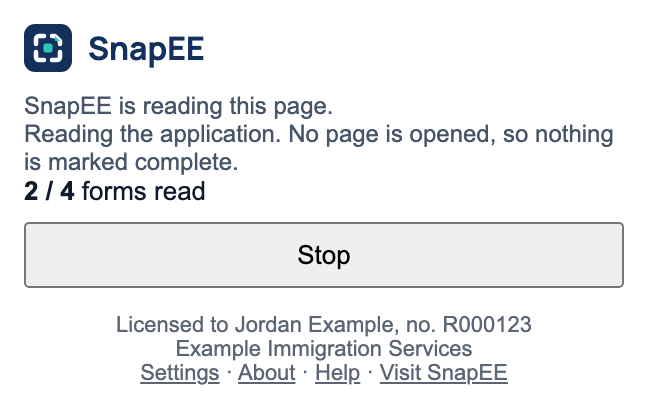
- Choose Auto-walk this application. SnapEE reads every form, every person and every dependant in a few seconds, and the popup shows its progress. You can choose Stop at any time. You can also open pages yourself; SnapEE reads each one as it opens.
- Choose Generate report.
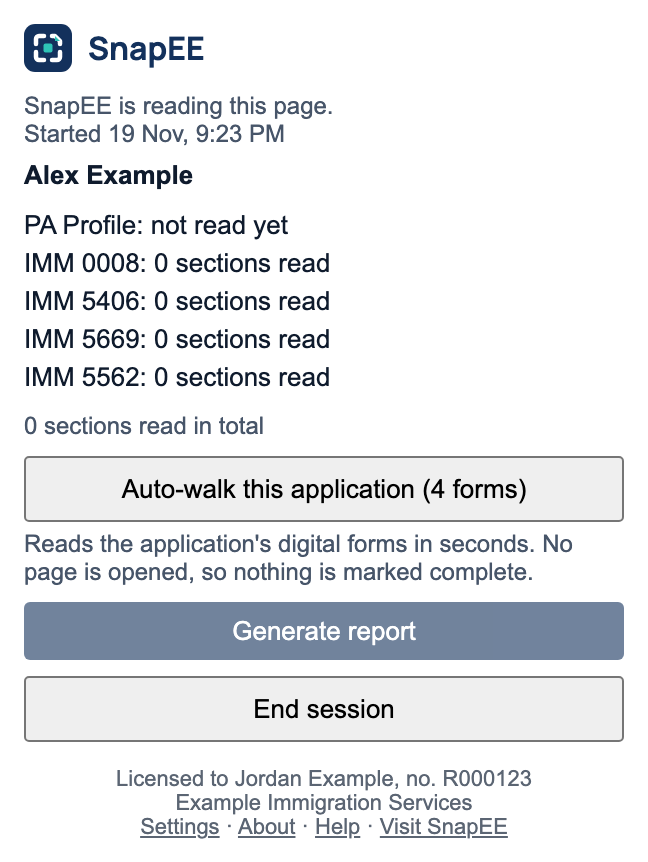
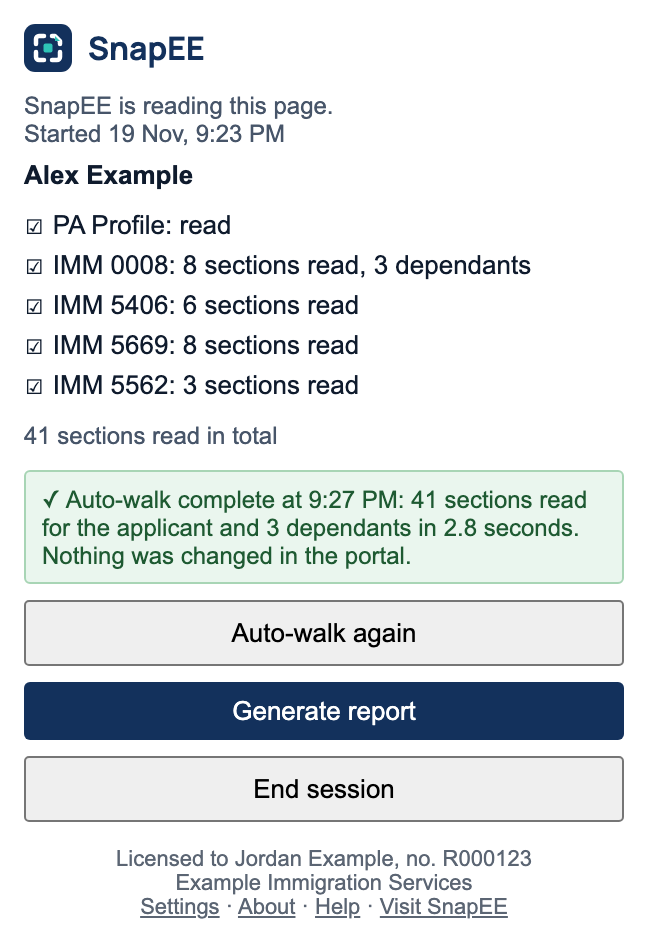
Choose End session between clients.
How Auto-walk works here
Auto-walk in the PR Portal does not move from page to page. In that portal, moving from one form page to the next marks the page complete, even when nothing was changed on it. Instead, SnapEE reads the whole application through the same requests the portal's own pages use to show your answers, from the tab where you are signed in. No page is opened or left, so nothing is marked complete, whether a form is finished or not.
It reads the PA Profile, every page of IMM 0008, every dependant, each adult's copy of IMM 5406 and IMM 5669, and IMM 5562. For a PR card or PRTD application it reads every page of IMM 5444. It only reads. It never saves, submits or changes anything in the portal, and it does not keep the portal's sign-in.
If the read does not finish, for example because the portal signed you out, sign in again, open the application and choose Auto-walk this application again. Pages read before are kept.
What the report adds
The report opens with an overview of the application: the client, the category, the status of each form, whether the client has signed the consent and declaration, and, after Auto-walk this application, the client's declaration for each form. Then come the principal applicant's pages, form by form, and then each dependant's.
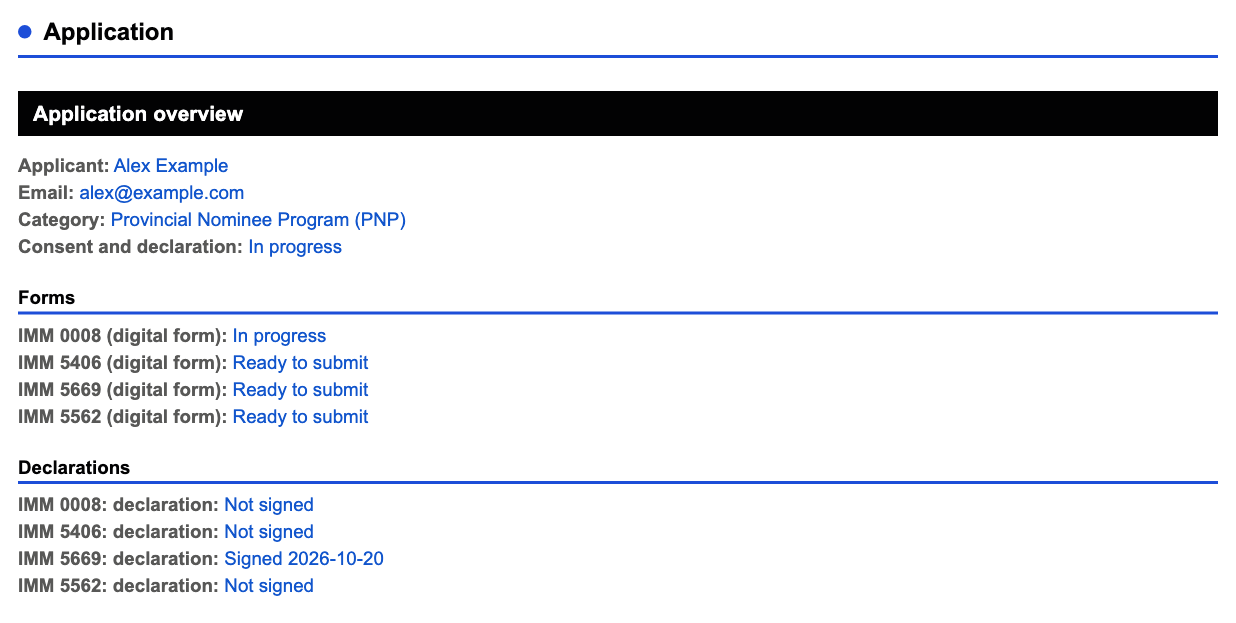
Most answers in the PR Portal are typed by hand, so Needs attention on the first page can also list:
- required answers that may still need to be completed;
- an entry whose end date is before its start date, or a date after the day the report was read;
- gaps in the IMM 5669 personal history and addresses over the last 10 years, or since the 18th birthday;
- a trip whose destination and length may be in the wrong boxes;
- answers that may differ between forms: names and dates of birth, the spouse or partner, the date of marriage, children in IMM 5406 compared with the dependants in IMM 0008, the parents in IMM 5406 and IMM 5669, and the years of education in IMM 0008 and IMM 5669;
- a form the portal shows as Ready to submit while questions it always requires are still empty (saving any page marks a form Ready to submit, finished or not);
- "Did not travel" ticked in IMM 5562 while trips are listed, and a dependant's trip naming someone who is not a dependant;
- a client's declaration that is already signed, because changing anything may clear it;
- forms not started, and PDF forms not uploaded yet.
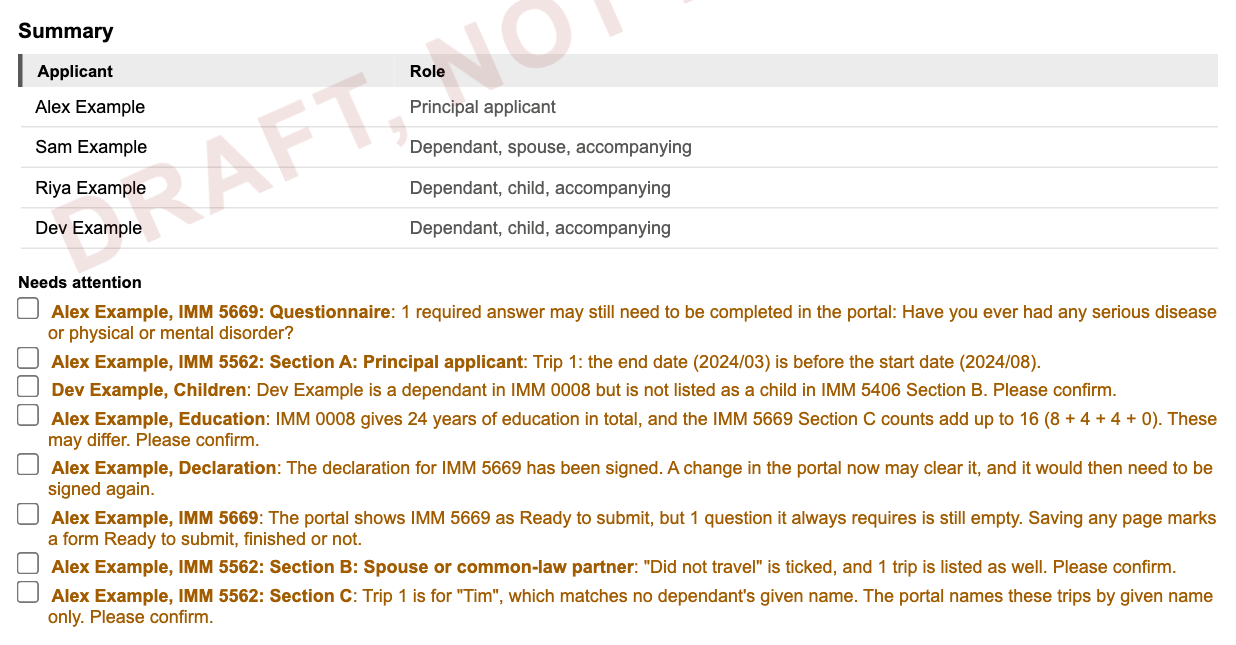
Some differences are right, for example a child listed in IMM 5406 who is not part of the application. Each item asks you to confirm, and you decide. See What Needs attention means.
PR card renewals and PR travel documents
An application for a PR card or a PRTD has one digital form, IMM 5444. Capture it the same way. Open the application's main page, the one with the client's details and the list of forms, then choose Auto-walk this application. The report is titled Permanent Resident Card Application or Permanent Resident Travel Document Application, and the suggested file name ends in PRC or PRTD.
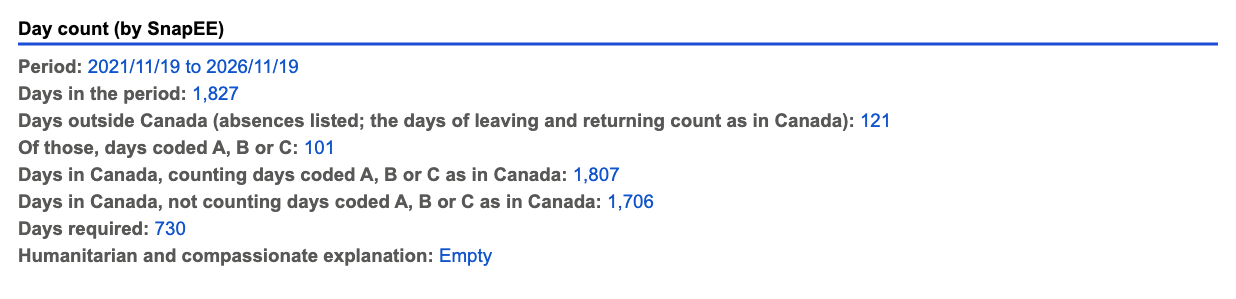
The residency obligation page gets a day count, worked out by SnapEE from the absences listed in the form.
- The period is the one given in the form. If the form gives none, it is the 5 years before the day the application was read, or the time since the date of becoming a permanent resident if that is shorter.
- As in IRCC's own count, the day of leaving and the day of returning count as days in Canada.
- Days coded A, B or C are shown both ways, counted as days in Canada and not counted, next to the 730 days required. SnapEE does not decide whether a code applies.
- For someone who has been a permanent resident for less than 5 years, the report gives the date 5 years after becoming one and the number of days from the end of the period to that date.
- Whether the humanitarian and compassionate explanation is filled in.
Needs attention can also list, for IMM 5444:
- fewer than 730 days in Canada in the period, with both counts;
- an absence outside the period, and a period that does not match 5 years or the date of becoming a permanent resident;
- an absence coded A, B or C while that question is answered No, or a question answered Yes with no absence coded for it;
- "Other" with no reason given, and absences listed while the form says the client has not been outside Canada (or the other way round);
- an absence coded B or C with no travel companion of the matching status, and a companion's relationship that differs from the marital status;
- an address or work outside Canada, or a current address outside Canada, on days no listed absence covers;
- gaps in the address and work history, and dates after the day the report was read;
- a name different from the one on the Record of Landing or last PR card;
- for a lost, stolen or damaged card, a loss date outside Canada that no listed absence covers.
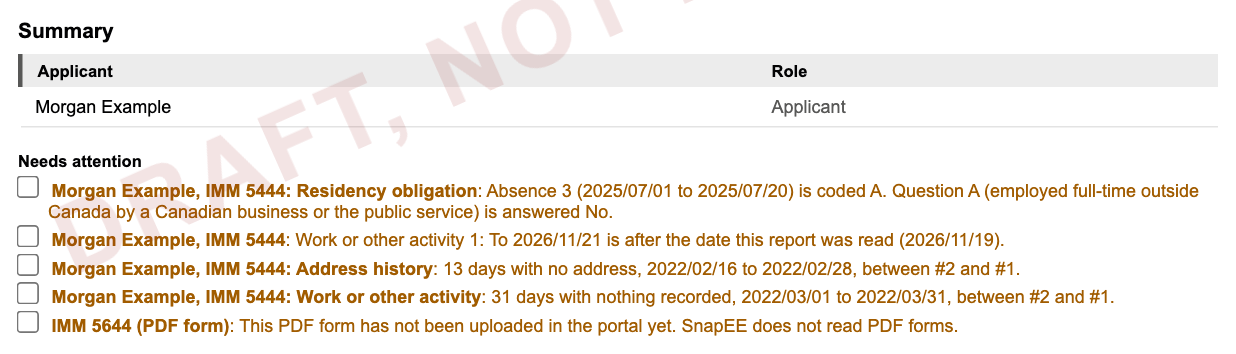
Each item states the dates and numbers. Whether the residency obligation is met is for you to assess. The count runs to the day SnapEE read the application, while IRCC looks at the 5 years before it receives the application, so check the count again close to submission. SnapEE does not check the supporting documents uploaded for these applications.
What SnapEE does not read here
- PDF forms, uploaded documents and fees. The report lists each PDF form with its status.
- Submitted applications. After submission the portal closes the forms, and the full application is available as a download from the portal.
If it does not work
- SnapEE is turned off after an update. See If SnapEE stops working.
- The popup says SnapEE is not reading this page yet. Refresh the page once.
- Auto-walk this application says the portal session has ended. Sign in to the PR Portal again, open the application, and try again.
- Auto-walk this application could not read the application. Refresh the portal page and try again. You can still open each page yourself. IRCC may change the portal, so please tell us what you see.
Still stuck? Write to support@snapee.ca.